
Create your first traffic project
Create a project, add at least one target URL, pick an engine, set a stop condition of 10 visits, and press Start. Watch the Logs panel to confirm visits succeed, then check your analytics Realtime report. Keep the first run small and without proxies so you are testing one thing at a time.
Your first project should prove the basics work end to end. Keep it small, skip proxies, and change one thing at a time.
1. Create the project
Click New Project in the sidebar and give it a name. Names are just labels — use something you will recognise later, like the site you are testing.
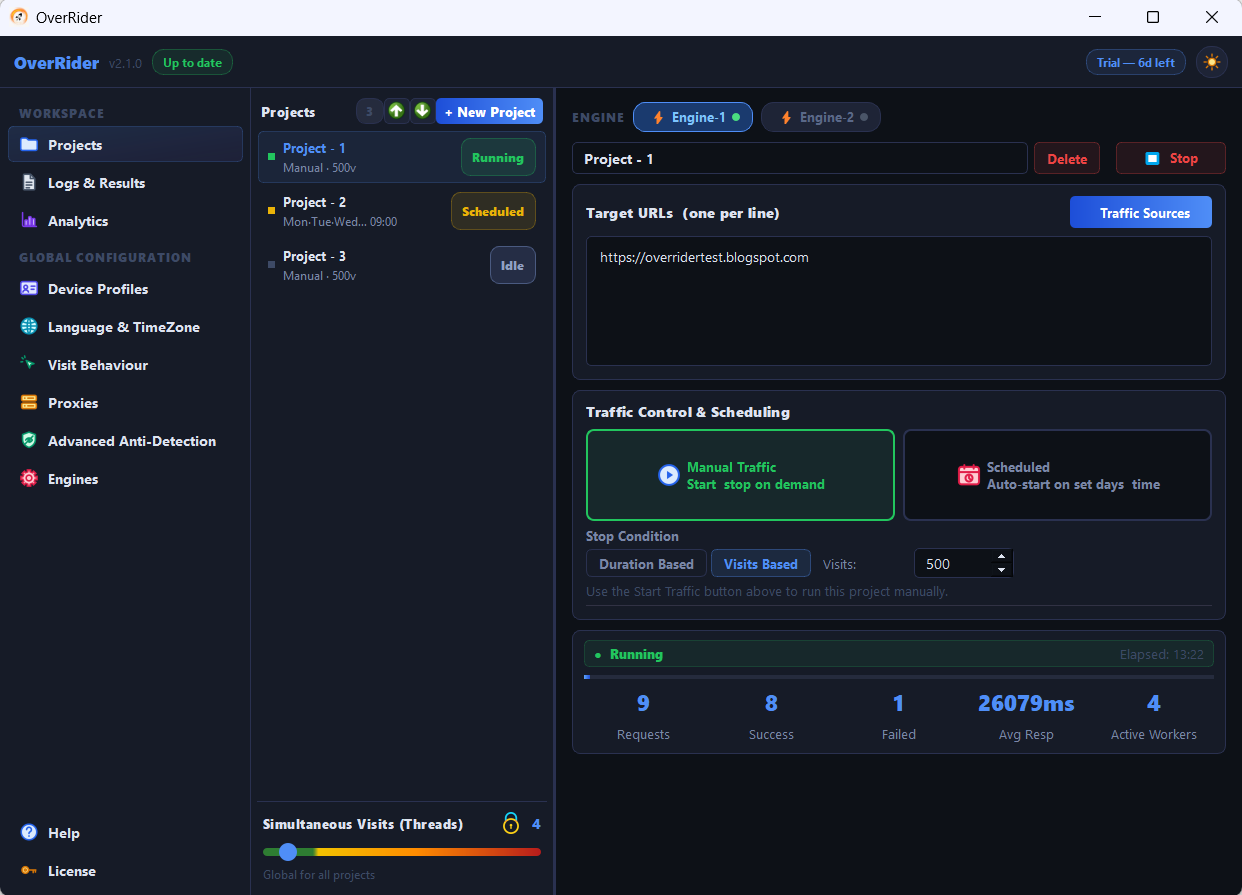
2. Add a target URL
In the Target URLs card, add the full address of a page you own, including https://. One URL is enough for a first test.
If you add several, one is chosen at random per visit.
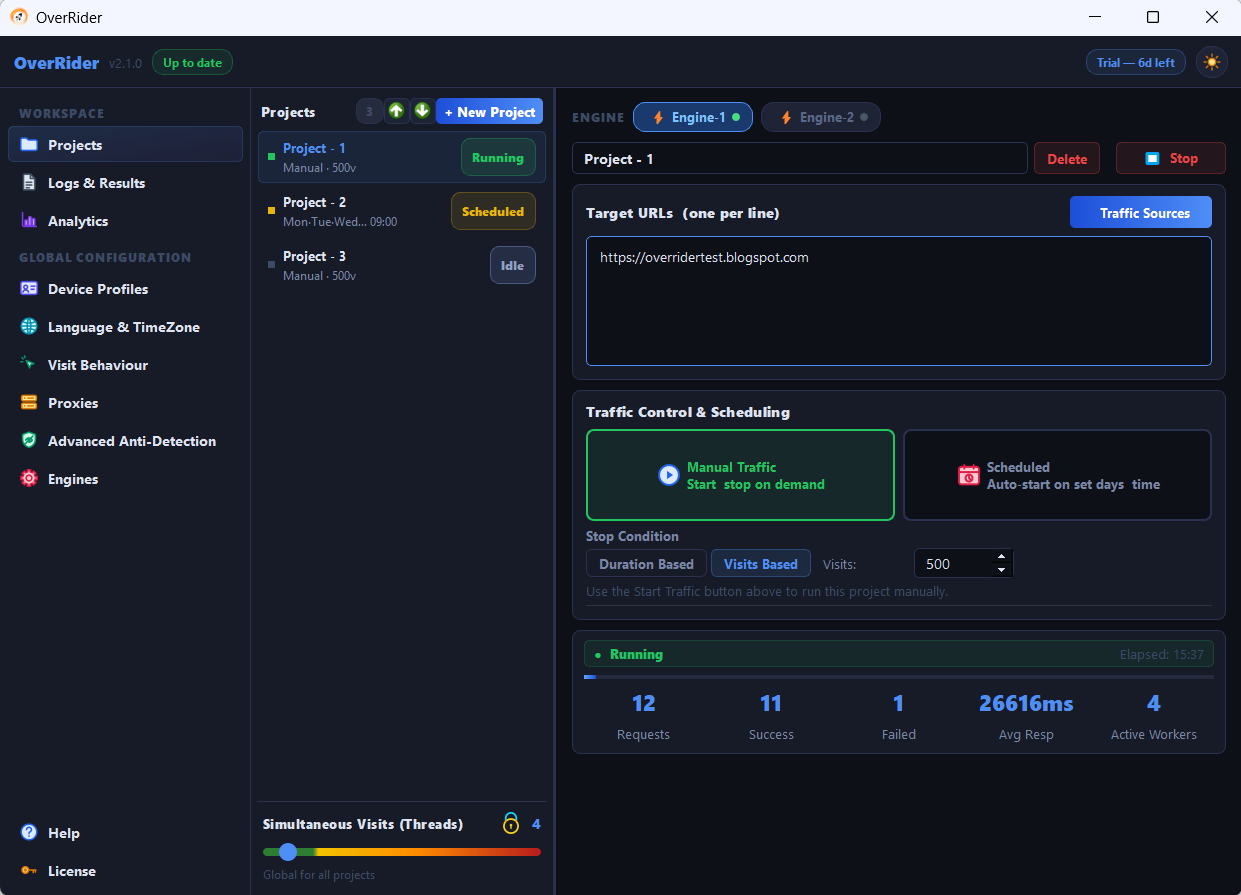
3. Choose an engine
Use the engine pills in the action bar. Engine-1 is the default and a good starting point. It must show as installed; if it does not, install it from the Engines panel. See Engine-1 vs Engine-2 if you want to compare the two.
4. Set a small stop condition
Choose Visits Based and set it to 10. A first run should finish in a few minutes so you get an answer quickly.
5. Turn proxies off for this run
Leave proxies disabled so visits come from your own IP address. This removes the single most common source of first-run failures. Add proxies once you have confirmed the basics work.
6. Set threads to 2
Two simultaneous visits is plenty for a test and keeps the log readable. You can raise it later.
7. Start it
Press Start and watch the Logs panel. You should see visits opening, loading your page, staying, and closing.
| What you see | What it means |
|---|---|
| Visits complete, success count rising | Working correctly |
| Browser executable not found | The selected engine is not installed |
| Page load timeout | The URL is wrong or unreachable |
| HTTP 403 or a challenge page | The site is blocking automated visits |
8. Confirm the traffic arrived
Open Reports → Realtime in Google Analytics while the project runs. Visits should appear within about 30 seconds. Do not check the standard reports yet — they lag by up to 48 hours.
If OverRider reports successes but Realtime is empty, work through Traffic is not showing in Google Analytics.
What to change next
Once the basic run works, add one thing at a time and re-test:
- Traffic sources so visits arrive with a referrer — see Traffic sources explained.
- Proxies, so visits come from other IP addresses — see Add your own proxies.
- More threads, raising gradually and watching for timeouts.
- A longer stop condition, or Duration Based for a timed run.
Changing several settings at once makes a failure impossible to diagnose. If something breaks after a change, undo just that change.
Last updated: