
Traffic is not showing in Google Analytics
Check the GA4 Realtime report first, not the standard reports, which lag by up to 48 hours. The three most common causes are Load JavaScript being turned off, a target URL that does not carry the GA4 tag, and free data-centre proxies being filtered out by GA4 automatic bot filtering.
Work through these in order. The first three account for most cases.
1. Are the visits succeeding at all?
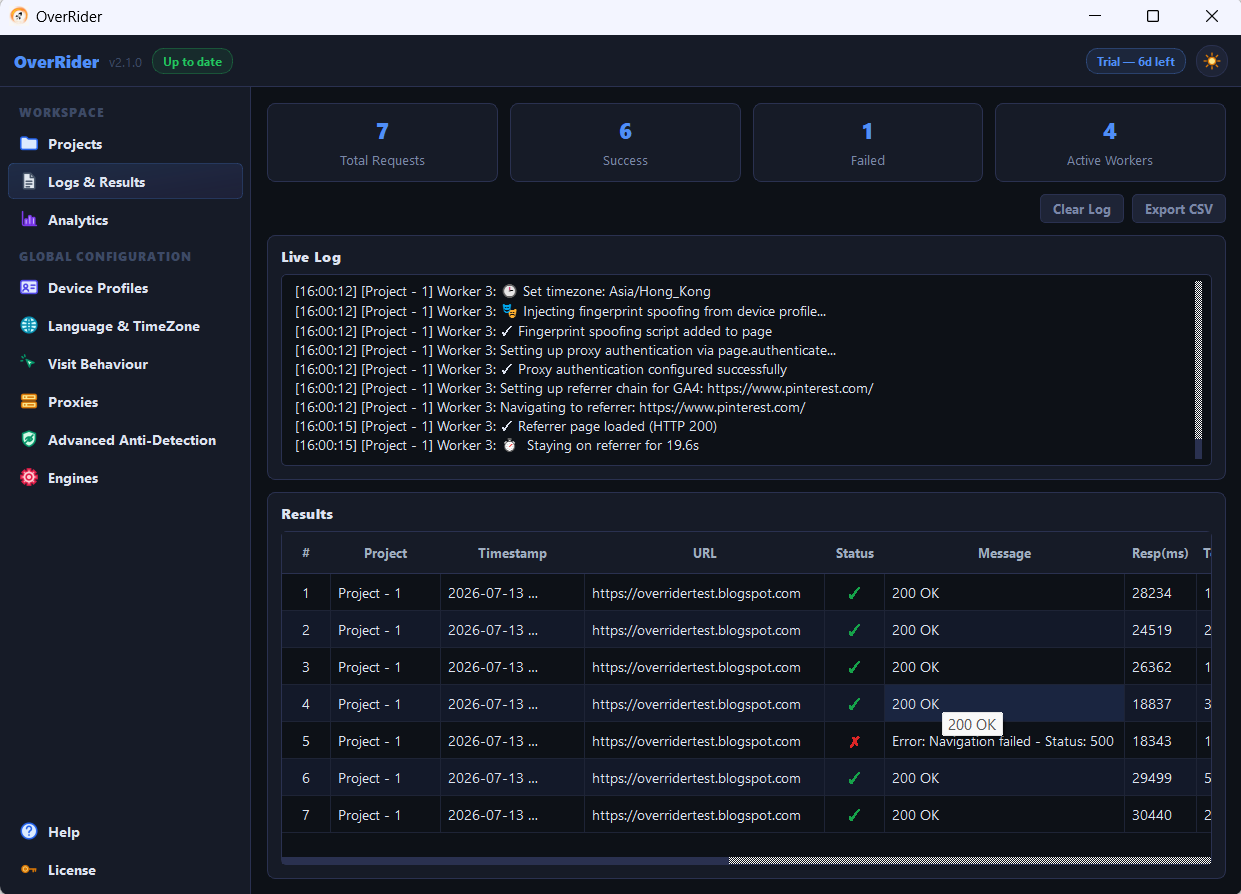
Open the Logs and Results panel and look at the success count. If visits are failing, this is a traffic problem rather than an analytics problem — see Proxies keep failing.
2. Are you looking at the Realtime report?
GA4 standard reports are not live. Data can take 24 to 48 hours to appear in full, so a test run today may show nothing in Reports until tomorrow.
Use Reports → Realtime instead. Start a small project and watch. Visits should appear within about 30 seconds.
3. Is Load JavaScript turned on?
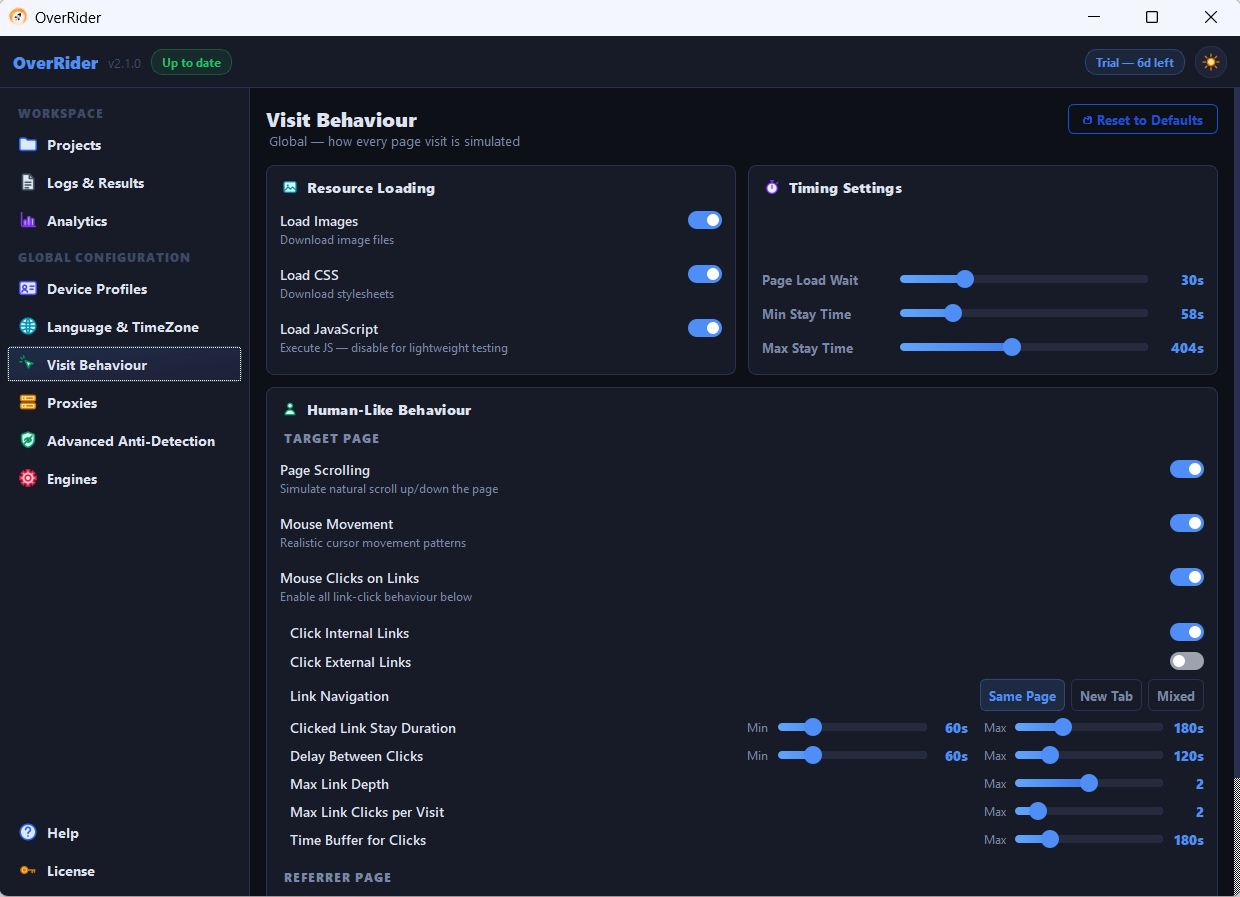
This is the single most common cause. Google Analytics is a JavaScript tag. If Load JavaScript is off in Visit Behaviour, the tag never runs and nothing is recorded — but OverRider still reports the visit as successful, because the page itself loaded correctly.
Open Visit Behaviour and confirm Load JavaScript is enabled. Load Images and Load CSS do not matter for analytics.
4. Does the target URL actually carry the tag?
- Open one of your target URLs in your own browser and confirm the page has the GA4 tag installed.
- Check the URL is exactly right, including
https://and anywww.prefix. - If the URL redirects, make sure the destination also carries the tag.
- Confirm you are checking the correct GA4 property and data stream.
5. Is GA4 filtering the traffic as bot activity?
GA4 automatically excludes traffic from IP ranges on an industry list of known bots and data centres. Many free public proxies run in exactly those data centres, so those visits are discarded before they reach your reports.
This produces the confusing situation where OverRider reports a 90 percent success rate and GA4 shows almost nothing: the requests genuinely reached your server, and GA4 genuinely filtered them.
To test whether this is your cause, run a project with proxies disabled entirely, so visits come from your own IP address. If those appear in Realtime, proxy filtering was the problem. The fix is authenticated residential proxies, which are not usually affected.
6. Is something else filtering it?
| Check | What to look for |
|---|---|
| GA4 data filters | Admin → Data Streams → internal traffic rules. An IP filter you added earlier may match your proxies. |
| Consent mode | If your site requires cookie consent before the tag fires, no consent is given, so nothing is recorded. |
| Cloudflare or a WAF | Look in the OverRider log for 403 responses or challenge pages. The page may be blocked before your tag loads. |
| Tag Manager conditions | A trigger condition may exclude the traffic based on referrer or geography. |
Traffic appears that you did not generate
If analytics is recording visits after you stopped everything, that traffic is not from OverRider. All traffic originates from your computer; when the application is closed or the machine is off, none is possible.
To identify the real source, open Reports → Acquisition → Traffic acquisition and compare the session source, device category and browser of the ongoing traffic against what you had configured. If they do not match your settings, it is coming from somewhere else — commonly genuine visitors, crawlers, or OverRider still running on another computer with a scheduled project.
Scheduled projects start automatically. If OverRider is installed on a second machine with a schedule configured, it will begin running on its own at the scheduled time.
Last updated: