
Add your own proxies
Paste or import your proxies into the Proxies panel in any common format, including host:port and user:pass@host:port. Then either tick them manually or add Private to the auto-select scope, or they will never be used.
1. Open the Proxies panel
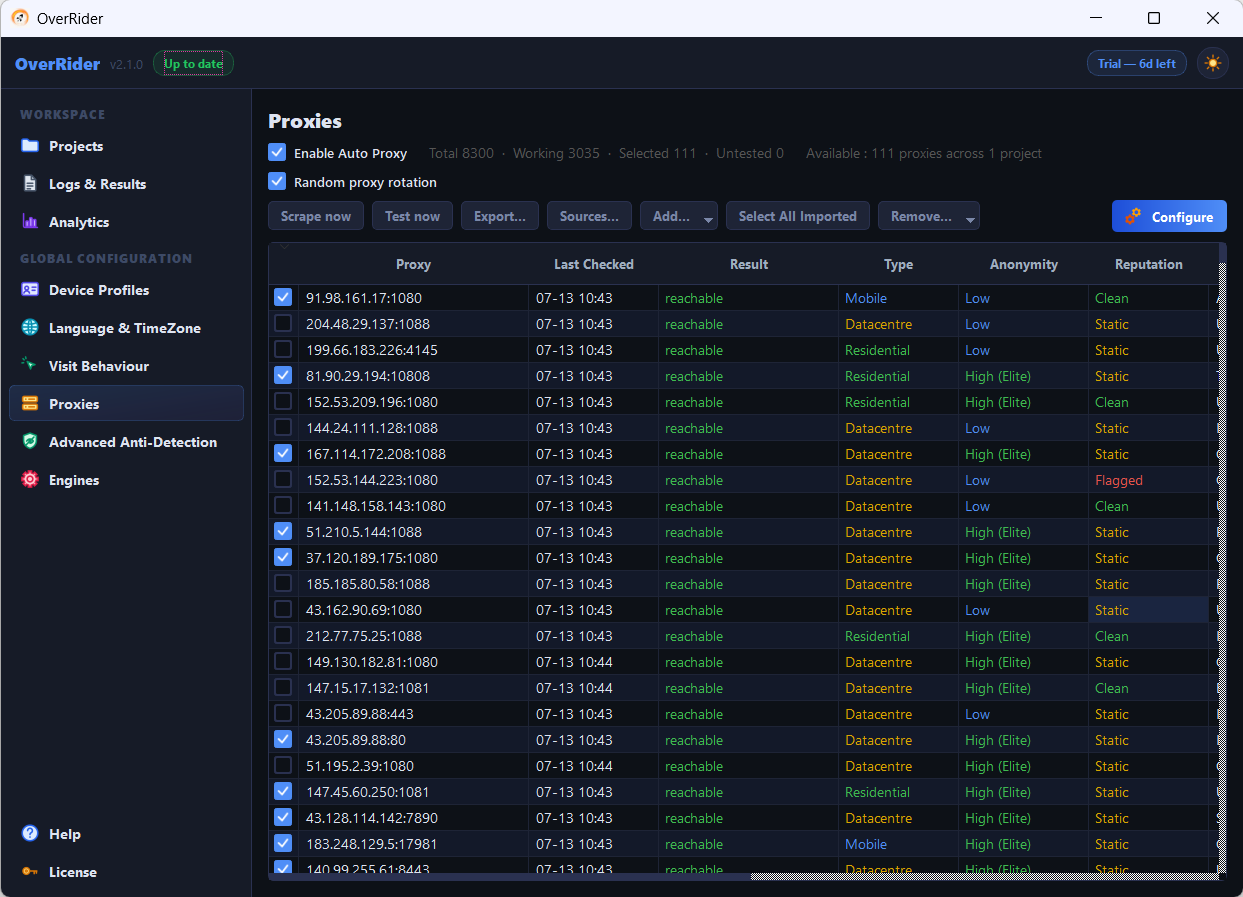
Select Proxies in the sidebar. You will see live counts, the proxy table and the action buttons.
2. Add your proxies
Paste them from the clipboard or import a text file, one proxy per line. Several formats are accepted:
host:port
host:port:user:pass
user:pass@host:port
scheme://host:port
scheme://user:pass@host:port
scheme://host:port:user:pass
The scheme may be http, https, socks4 or socks5. If you leave it out, it is inferred from the port — 1080, 1081 and 9050 are treated as SOCKS5, 4145 as SOCKS4, and anything else defaults to HTTP.
Full details are in the proxy format reference.
If your password contains : or @, percent-encode it — @ becomes %40 and : becomes %3A. Otherwise the line cannot be parsed correctly, and traffic may silently go out from your own IP address instead.
3. Test them
Use the test action to check them immediately rather than waiting for the background schedule. Working proxies are marked as such, and their exit country is detected and stored — which is what the country filter later depends on.
4. Make sure they will actually be used
This is the step people miss.
The Auto-select scope under Proxy Configuration defaults to Public only. Proxies you add with credentials are classified as Private, so auto-selection ignores them until you change this.
Two options:
- Tick them manually in the proxy table. Manually ticked proxies are always used, regardless of any criterion.
- Add Private to the auto-select scope, so they qualify automatically along with everything else that matches your criteria.
Ticking manually is the simpler choice when you have a small, stable list.
5. Consider turning off auto-scraping
If you are relying entirely on paid proxies, there is little reason to keep scraping free ones. Turning Enable Auto Proxy off stops the background scraping and testing, which reduces load and keeps your proxy table clean.
Keep it on if you want free proxies as overflow capacity.
6. Verify with a short run
Start a 10-visit project and watch the log. You should see visits succeeding and your proxy addresses in use.
To confirm traffic really is leaving through the proxy, check the geography in your analytics Realtime report — it should show the proxy’s country, not yours.
Which proxies to buy
| Type | Analytics behaviour | Verdict |
|---|---|---|
| Residential | Normal IP reputation; not filtered as bot traffic | Best choice for analytics work |
| Mobile | Similar to residential; usually pricier | Good, rarely necessary |
| Data centre | Fast and cheap, but often on bot filter lists | Fine for load testing, poor for analytics |
If visits succeed in OverRider but never appear in Google Analytics, data-centre IP filtering is the most likely explanation. See Traffic is not showing in Google Analytics.
Last updated: