
Install and activate OverRider
Run the installer, launch OverRider, then activate with either a CodeCanyon purchase code or a license key from overrider.io. Your license binds to that computer. On first launch OverRider also downloads a browser engine, which needs an internet connection and a few minutes.
1. Install the application
- Download the installer from your account page on overrider.io, or from your CodeCanyon downloads.
- Run the installer. If Windows SmartScreen appears, choose More info then Run anyway.
- Complete the setup wizard and launch OverRider.
If your antivirus quarantines the installer, add an exclusion for the installation folder before retrying. Browser automation tools are a common source of false positives.
2. Activate your license
On first launch OverRider asks how you want to activate. There are two routes, depending on where you bought it.
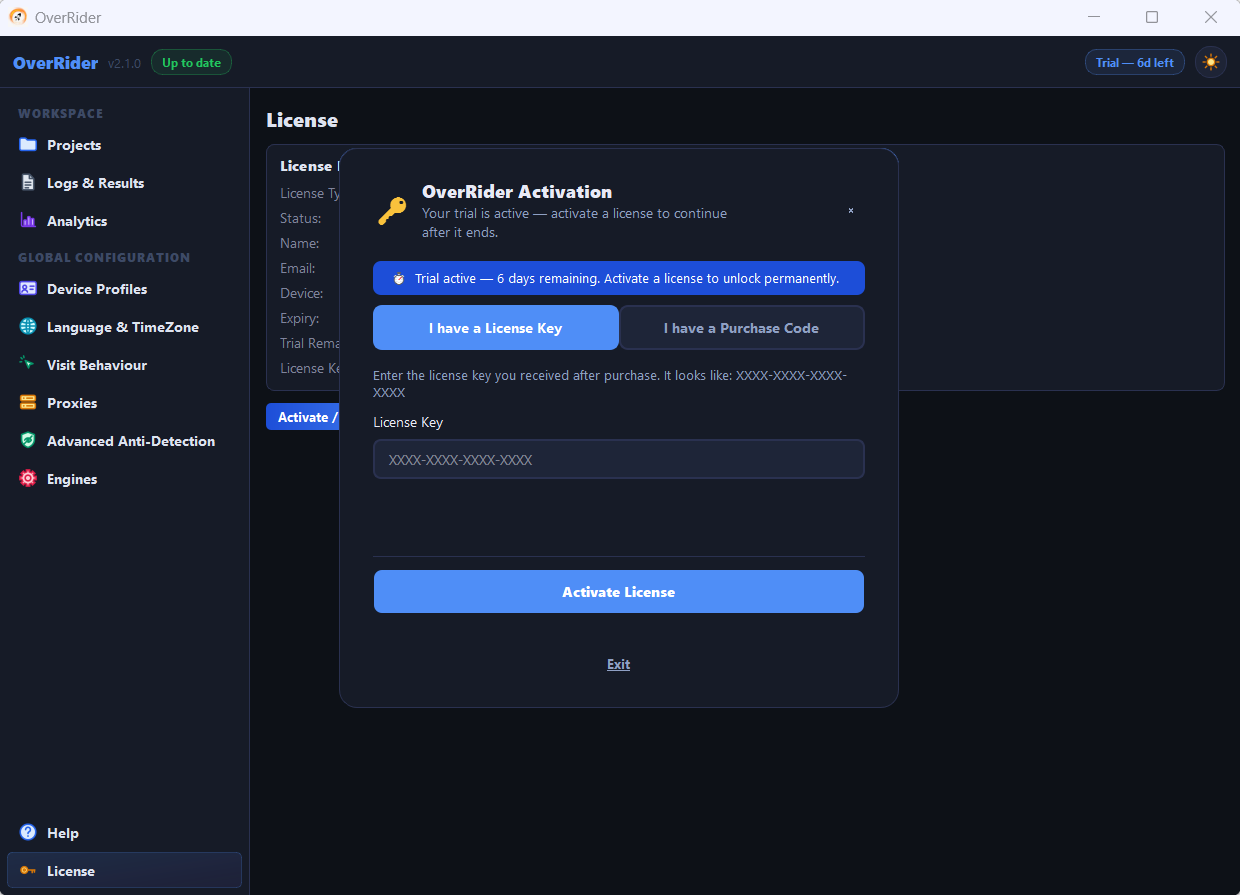
Option A — CodeCanyon purchase code
Use this option only if you bought OverRider through CodeCanyon. If you purchased directly from overrider.io, this option does not apply to you — skip ahead to Option B.
- Sign in to CodeCanyon and open Downloads.
- Next to OverRider, choose License certificate & purchase code.
- Copy the purchase code.
- Paste it into OverRider and click Activate.
Option B — License key from overrider.io
- Check the email you received after purchase, or sign in to your account on overrider.io.
- Copy the license key.
- Paste it into OverRider and click Activate.
Free trial
If you have not bought yet, you can start a 7-day trial from the same screen. The trial is tied to your computer, so it can only be started once per machine.
3. Install a browser engine
OverRider cannot generate traffic until at least one browser engine is installed. On first launch it downloads one automatically. You can also install or reinstall from the Engines panel.
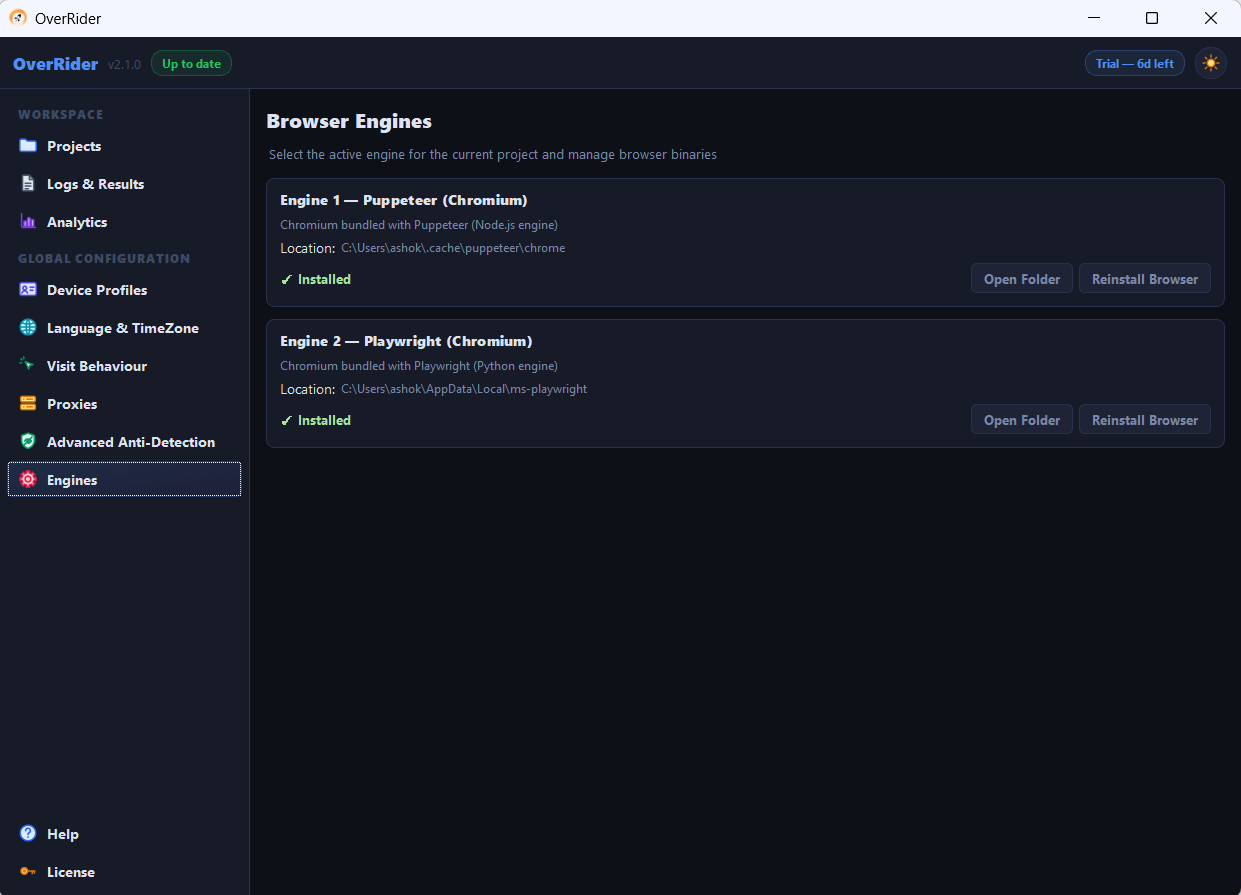
| Engine | Downloads | Approximate size |
|---|---|---|
| Engine-1 | Node.js runtime and Google Chrome, through Puppeteer | About 500 MB |
| Engine-2 | Chromium, through Playwright | About 450 MB |
The download takes a few minutes on a normal connection. Leave OverRider open until it finishes. See Engine-1 vs Engine-2 to decide which to use.
Internet requirements after activation
OverRider always needs an internet connection to generate traffic — every visit is a real page load over the network, so this is not optional. What OverRider does not require every time is re-checking your license online: once verified successfully at least once on a machine, license verification itself keeps succeeding on that machine even if it temporarily cannot reach our server, with no time limit on that grace period. That only covers the license check, not traffic generation.
Moving to a different computer
Your license binds to a device identifier derived from your hardware. To move OverRider to a new machine, email support@overrider.io with your license key and ask for a reset. Reinstalling Windows or replacing major hardware on the same machine can also change the device identifier and require a reset.
Activation troubleshooting
| Message | Cause and fix |
|---|---|
| Invalid license key | A typo, or trailing whitespace from copy and paste. Retype it, or copy without the surrounding spaces. |
| Already activated on another device | The key is bound to a different machine. Request a reset from support. |
| Could not reach the server | A firewall, VPN or corporate proxy is blocking overrider.io. Allow it, or activate from a different network. |
| Trial already used | A trial has already run on this computer. Trials cannot be restarted. |
You can check your current status at any time in the License section of Settings.
Last updated: