
Schedule a project to run automatically
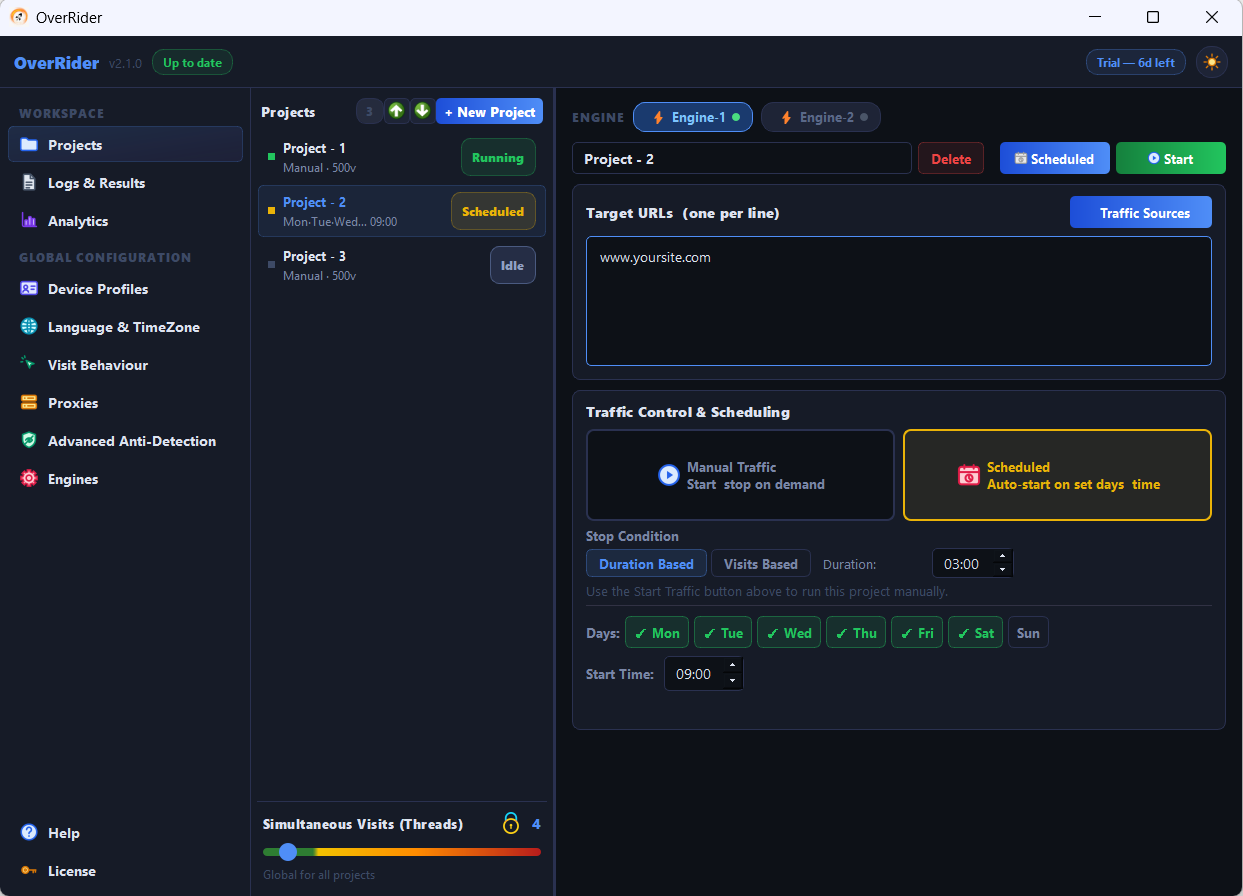
In the Scheduling section, tick the weekdays and set one start time. OverRider must be running for a schedule to fire. Each project supports a single start time, so build daily patterns by creating several projects.
Setting a schedule
- Select the project and find the Scheduling section.
- Tick the days of the week it should run.
- Set the start time in HH:MM.
- Confirm the stop condition is what you want — the schedule starts the project, the stop condition ends it.
OverRider must be running
A schedule only fires while OverRider is open. It is not a Windows service and does not install a system task. If the application is closed at the scheduled time, that run is missed — it does not catch up later.
For daily automation, leave OverRider running and set it to start with Windows.
One start time per project
Each project supports a single start time. To build a pattern across the day, create several projects:
| Project | Days | Start | Duration |
|---|---|---|---|
| Morning | Mon to Fri | 09:00 | 03:00 |
| Afternoon | Mon to Fri | 13:00 | 04:00 |
| Weekend | Sat, Sun | 11:00 | 05:00 |
They can share target URLs and traffic sources — only the timing differs.
Do not let runs overlap their next start
Keep the duration comfortably shorter than the gap to the next scheduled start. A project scheduled daily at 09:00 with a 26-hour duration is still running when the next start arrives, which is rarely what anyone intends.
Threads are still shared
If two scheduled projects overlap, they split the global thread count between them. Two projects each expecting 8 threads will get about 4 each. Plan the total.
Run Now
Scheduled projects can still be started by hand with Run Now, without altering the schedule. Useful for testing the configuration rather than waiting until tomorrow morning.
Stopping a scheduled project properly
Pressing Stop ends the current run only. The schedule remains active and the project will start again at its next scheduled time.
To stop it permanently, clear the scheduled days or delete the project. This catches people out — if traffic reappears the next morning after you stopped a project, an active schedule is almost always the reason.
Schedules on other machines
If OverRider is installed on a second computer with a scheduled project, it will start there on its own. When investigating unexpected traffic, check every machine that has OverRider installed, not only the one in front of you.
Time zone
Start times use your computer’s local clock. If the machine changes time zone, or moves on or off daylight saving, your schedule shifts with it.
Last updated: